Super Shout Showdown Getting Started
From Steam install to your first shouted (or typed) victory.
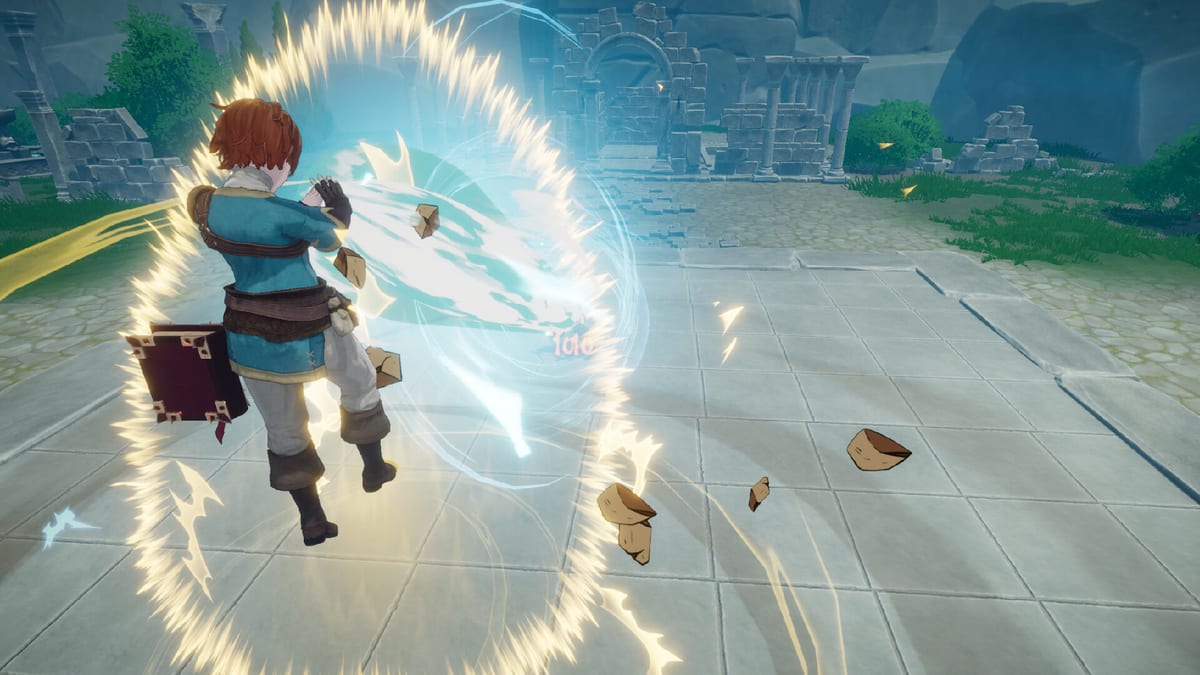
This getting started guide walks new Super Shout Showdown players from Steam page to competent lobby member without assuming prior voice-game experience.
Step 1 — Install the right build
Open the Steam store page, download the free demo to learn systems now, and wishlist Early Access (listed around August 6–7, 2026). Confirm your PC clears System Requirements, especially if you plan to main Shouting Mode.
Step 2 — Complete first-run setup
Select UI language, then set spell recognition language to match how you will chant. Bind movement, camera, spell PTT, and voice-chat PTT separately. Recalibrate mouse sensitivity after patches that changed defaults. Run the speech recognition test and try Fast / Balanced / High Accuracy models if present (Mic Fix).
Step 3 — Accept tutorial gifts
Official demo copy says the goddess of reincarnation grants five spells based on your personality while teaching movement and casting modes. Treat those five as your first kit, then open the lobby Grimoire immediately. Warm up against bots if available before public queues.
Step 4 — Pick a casting mode for week one
If you have a quiet room and headset, try Shouting Mode. Otherwise start on Typing & Tapping so you learn spell roles without fighting ASR. You can swap later.
Step 5 — Tighten the tiny Grimoire
Keep a mobility tool (Lightning Dash), a damage tool (Energy Bomb or Destruction Beam), and a sustain tool (Heal). Rewrite default names into short customs using How to Set Incantations — save longer empowered lines for protected finishers. Avoid Explosion as your only finisher until you can protect long casts. Track unlocks on Progression.
Step 6 — Learn mode goals
Queue Duel to practice clean trades, Team Battle (3v3 / 4v4 chaos) for combo timing, and Free-for-All only after you can survive chaos — secrets like Excalibur live there (Secret Spells). Read the matching how-to guides before blaming balance.
Step 7 — Optional VRoid flair
Want a custom anime avatar? Follow How to Use VRoid. Remember others only see your VRoid look if they also linked VRoid Hub.
Step 8 — Review and iterate
After five matches, open the Tier List, Builds, and Patch Notes pages. Replace underperforming spells, not your entire identity. Check Release & Demo for hotfix context when something feels wrong overnight.
Trailer context
The official trailer mid-page shows the combat fantasy. Use it as motivation, then return to drills: twenty successful casts in a private lobby before public queues.
Checklist
- Demo installed or EA unlocked
- PTT binds tested (cast vs chat)
- ASR model + recognition language set
- Five tutorial spells reviewed in Grimoire
- One mode guide bookmarked
- Mic optional but tested if shouting
You are ready. Jump back to the Guides Hub whenever a new system confuses you.
Frequently Asked Questions
Quick answers to the most common questions.
Is the demo worth playing before Early Access?
Yes. It teaches casting modes, Grimoire habits, and mode rules while the full release finalises polish.
How many starter spells do I get?
Demo notes describe five personality-based spells from the tutorial goddess — see [Progression](/guides/progression/).
Do I need VRoid on day one?
No. It is cosmetic integration. Learn combat first.
What if voice recognition fails?
Switch to Typing Mode, shorten chants, try another ASR model, and follow [Mic Fix](/guides/mic-fix/).
Where do I find codes?
This is not a Roblox-style code game. Focus on Steam unlocks, Grimoire progress, and FFA spellbooks.